
Use your own domain
Put your domain in the Custom domain field under Settings, then add the TXT record we show you at your DNS provider. We keep checking until it appears, then switch your page over and issue the HTTPS certificate. DNS usually propagates within an hour, occasionally a full day. Custom domains are on Starter and above.
What you need before you start#
You need a domain you already own, and access to wherever its DNS is managed. That is normally where you bought it: Cloudflare, GoDaddy, Namecheap and so on. We do not sell domains.
Decide what you want the address to be. A subdomain like links.yourname.com is the usual choice and leaves your main site alone. Using the root domain works too, but only if nothing else is on it.
Point your domain at your page#
-
Open Settings
In the page editor, click Settings at the bottom of the panel list, then scroll down to Custom domain.
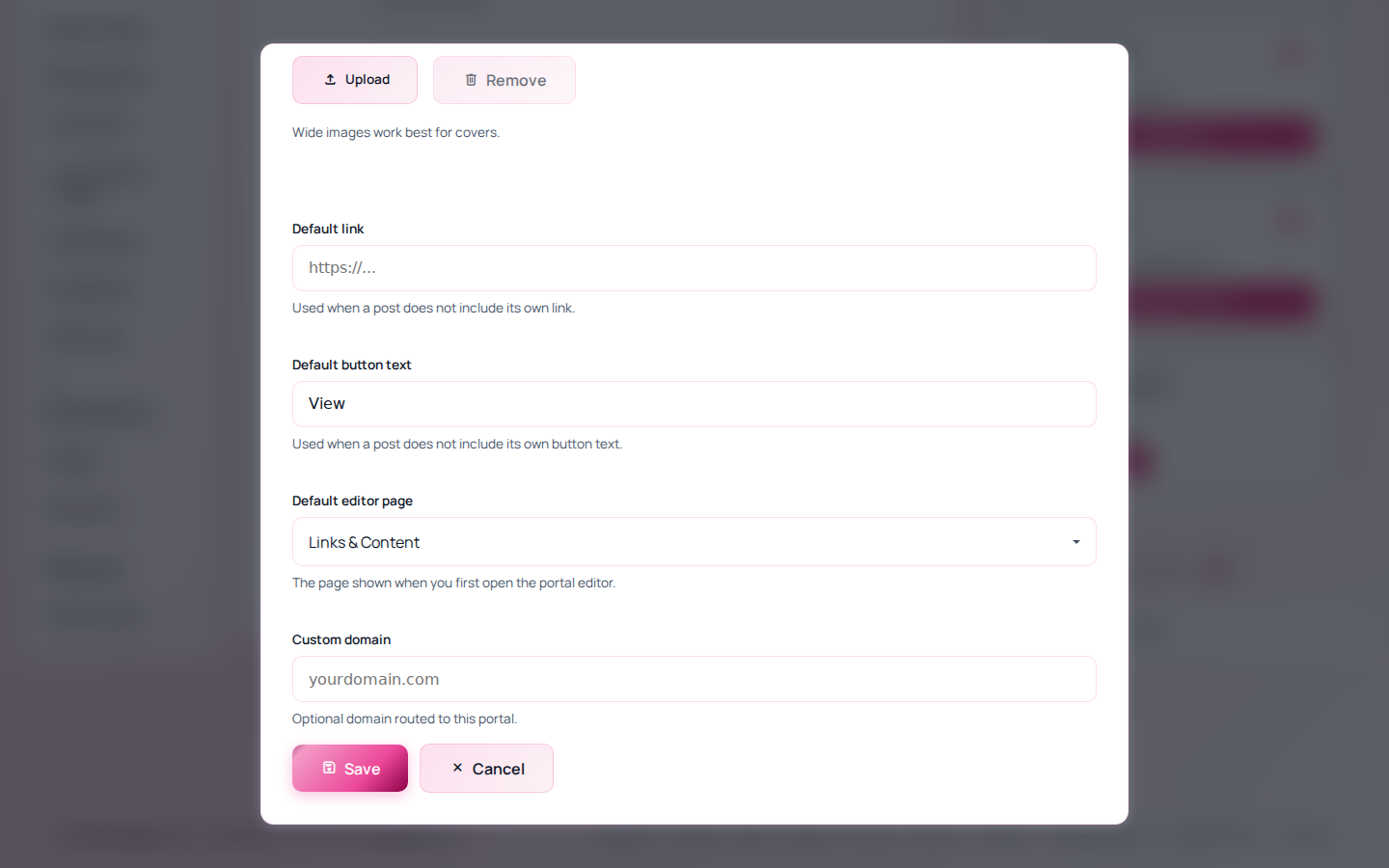
The Custom domain field, further down the same Edit portal panel. -
Type the domain and save
Enter it without
https://and without a trailing slash, solinks.yourname.com. -
Add the TXT record
Saving gives you a record name and a value. Add it as a TXT record at your DNS provider, exactly as shown. The name starts with
_clicked-bioand the value starts withclicked-bio-verification=.Copy and paste rather than typing. A single wrong character means the record will never match, and the error you get back is the same as if you had not added it at all.
-
Wait
We re-check on our own, so there is nothing to keep clicking. Most providers publish within an hour. Some take considerably longer, and neither of us can hurry them.
-
Point the domain at us
Verification proves the domain is yours. Traffic still has to reach us, which is the DNS record your provider needs alongside it. The editor shows you which one once verification is done.
HTTPS#
The certificate is issued and renewed for you. There is nothing to buy, install or remember. It is normal for the certificate to appear a few minutes after DNS resolves rather than instantly.
What changes once it is live#
Your page answers on your domain, and your clicked.bio address keeps working. Share links, QR codes and your sitemap all use the custom domain from then on, which is what you want — the point is that your audience sees your name rather than ours.
Remove a custom domain#
Clear the Custom domain field and save. Your page reverts to its clicked.bio address immediately. Anyone holding a link on the old domain will get nothing, so update your bio link before you do it, not after.
If something is not working#
- Verification has been pending for hours Check the record with a DNS lookup tool. If it does not show there, it is not published yet, and nothing on our side will change that.
-
Your provider added your domain to the record name
Some control panels append the domain automatically, which turns
_clicked-biointo_clicked-bio.yourname.com.yourname.com. Enter just the prefix if your provider does this. - Your provider will not accept the record A few require the value in quotes. Try wrapping it if a plain paste is rejected.
- The domain is verified but the page does not load Verification and routing are separate. Verification proves ownership; the second record sends traffic to us. Check both are in place.
- The field is not there, or asks you to upgrade Custom domains start at Starter. See pricing.
If it is still stuck, send us a message with the domain and your DNS provider. We can see what the lookup returns from our side.