Sell a product from your page
Two things have to happen: connect Stripe so you can be paid, then create the product and add a block for it. Both are in the Commerce panel. Buyers pay in a form on your own page rather than being sent off to a checkout somewhere else, and the money lands in your Stripe account, not ours.
Connect Stripe first#
Open Commerce in the editor. The Stripe section is at the top. Follow it through and Stripe will ask for your details, your bank account and, depending on your country, some identity documents.
Stripe usually approves within minutes. Occasionally it asks for more and takes a day or two. Nothing on our side can speed that up.
Payments go directly to your Stripe account. We never hold your money, and payouts run on Stripe's schedule rather than ours.
Create the product#
-
Click Add product
It is under the Products heading in the Commerce panel.
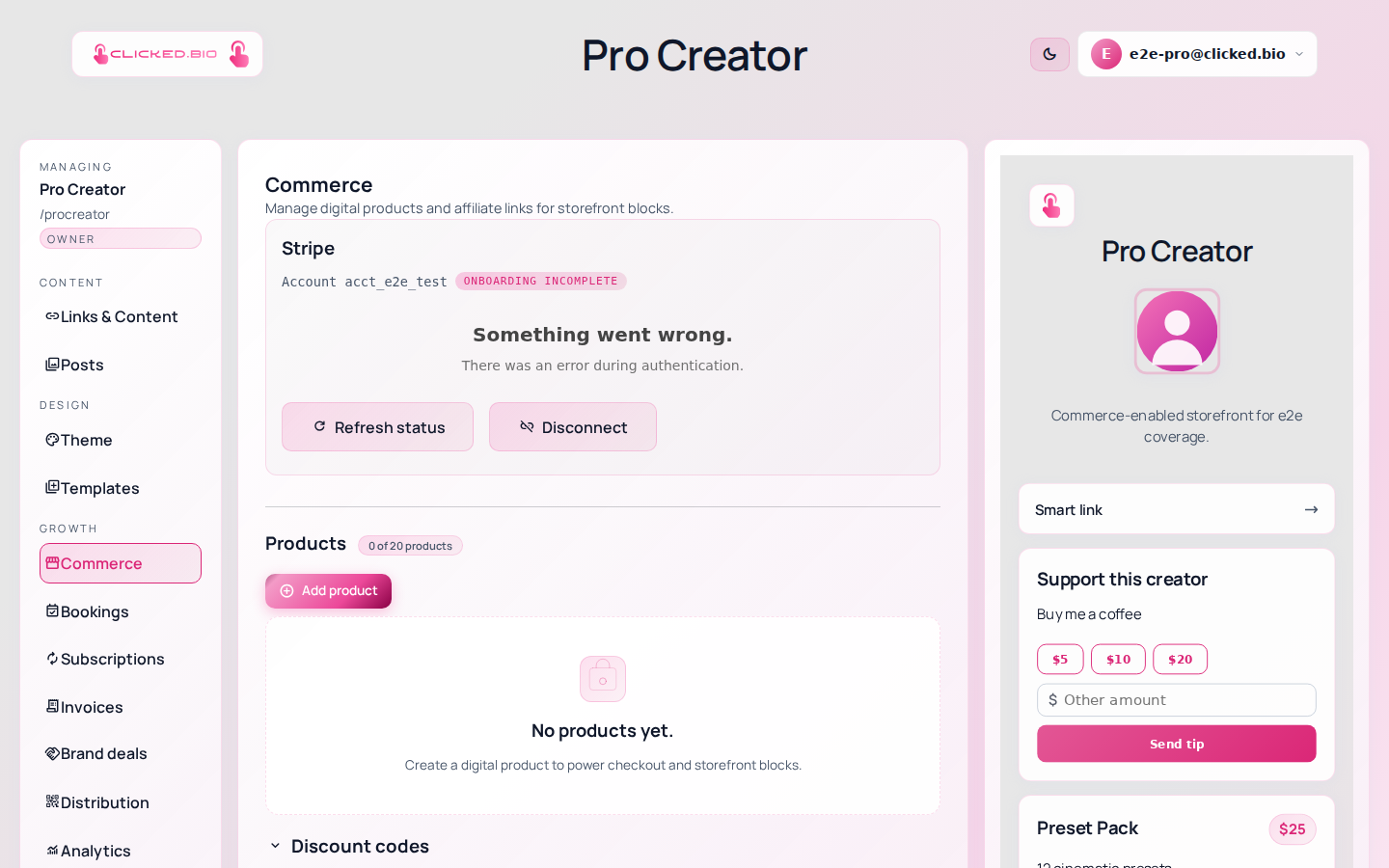
Products, tips and payout settings live in the Commerce panel. -
Fill in the name, description and amount
The description is doing sales work, so say what the buyer gets rather than what the thing is. "38 presets, plus the install guide" tells them more than "Preset pack".
-
Save it
The product now exists, but nothing on your page points at it yet.
-
Add a block for it
Go to Links & Content, click Add, and pick Product from the Commerce group. Point it at the product you just made. Use Storefront instead if you want several products in one block.
-
Buy it yourself
Open your public page and go through checkout with a real card. It is the only way to be sure the whole path works, and you can refund yourself in Stripe afterwards.
What buyers experience#
The payment form opens on your page. Buyers do not get redirected to a Stripe-branded page and do not have to create an account with anyone. Fewer people abandon a checkout that never leaves the site they were already on.
PayPal is available as well, if you would rather offer both.
What selling costs you in fees#
Stripe takes its usual processing fee, the same as it would anywhere else you take payments.
On top of that clicked.bio takes a platform fee that shrinks as you move up: 5% on Free, 3% on Starter, 1% on Pro, and nothing at all on Agency and Enterprise. The pricing page has the current numbers, along with how many products each plan includes — Free is one.
Beyond a single product#
- Tips. The Tip jar block takes money with no product attached, and works on every plan. It is the fastest thing to switch on.
- Discount codes and affiliate links. Both in the same Commerce panel, from Starter up.
- Subscriptions. Recurring payments from fans, under Subscriptions.
- Invoices. For brand work rather than product sales — see sending an invoice.
If something is not working#
- The buy button does nothing, or says payments are unavailable Stripe is not finished connecting. Go back to Commerce and check whether Stripe is still asking you for something.
- Add product is grayed out or asks you to upgrade You have used the products your plan includes. Free includes one.
- Your product block shows nothing to buy The block is not pointed at a product. Open the block and select one.
- A sale went through but you have not been paid Payouts are Stripe's, not ours. Check the payout schedule in your Stripe dashboard. First payouts are usually held for a few days.