

Send an invoice and get paid on your own page
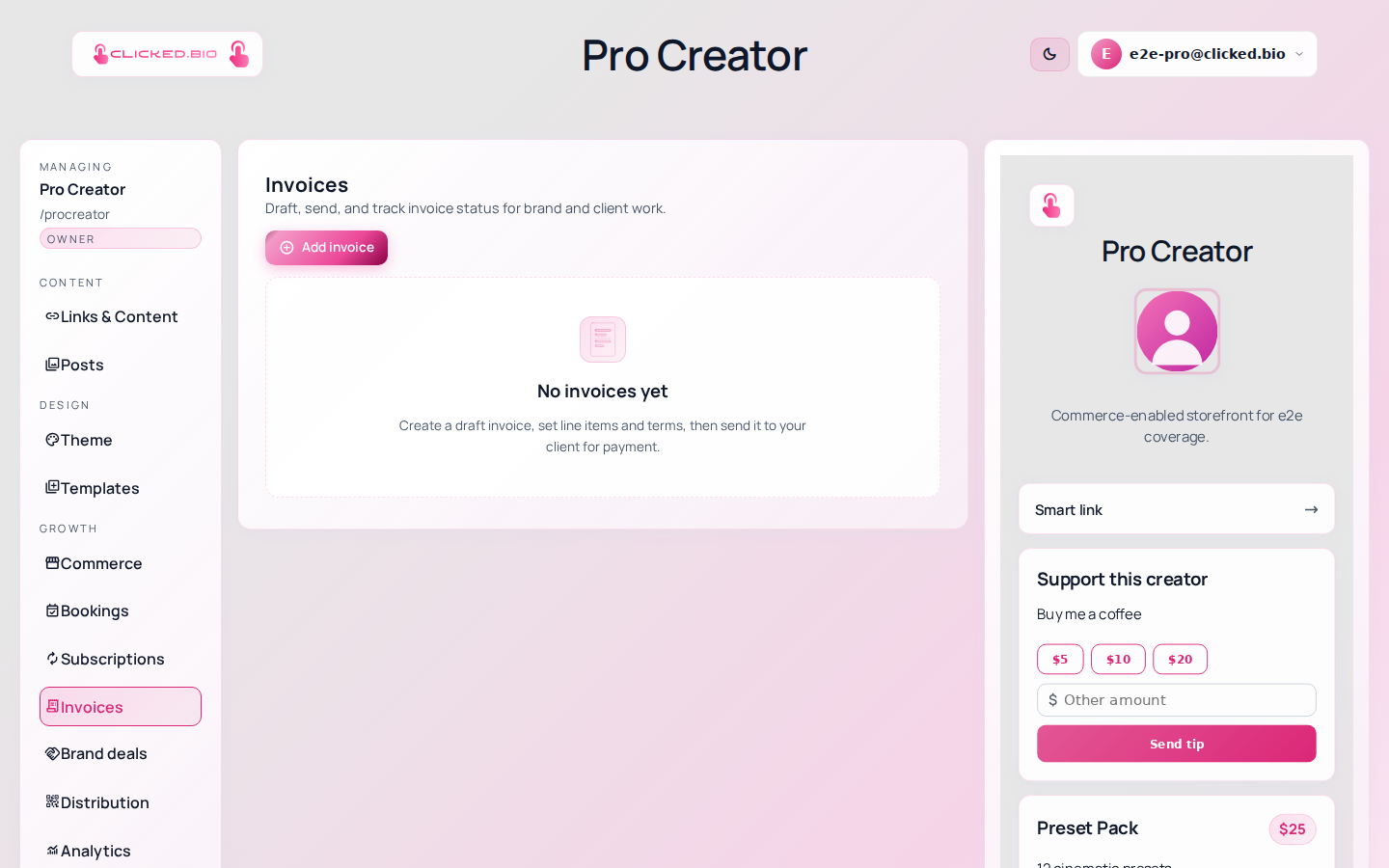
Open Invoices in the page editor, click Add invoice, fill in the title and the amount, and send it. Your client gets an email with a link, opens it, and pays by card on your page. They do not create an account and they are not redirected anywhere. Invoicing is on Pro and above.
Before you invoice: connect Stripe#
Connect Stripe under Commerce, if you have not already. Without it there is nowhere for the payment to land, and the pay link will not offer a payment form. Selling a product covers connecting Stripe.
Raise the invoice#
-
Click Add invoice
In the Invoices panel.
-
Give it a title
Write what the client is paying for, not "Invoice 3". They may be forwarding it to someone in finance who has no idea who you are. "Instagram sponsorship — March campaign" gets approved faster.
-
Set the amount and the client's email
That address is where the payment link goes, so check it against the email thread rather than from memory.
-
Save it as a draft, then send
Drafts do not email anyone. Set the status to Sent when you are ready and the client gets the link.
-
Watch the status
It moves to Paid on its own when they pay. You do not have to reconcile anything by hand.
What your client sees#
An email with a link. Clicking it opens a page with the invoice on it and a card form underneath. They pay and get a receipt. There is no account to create, no app to install, and no Stripe-branded page in the middle. That last one matters: an unexpected redirect is where invoice payments stall.
Payment links are signed and expire. A copied or edited link shows nothing and offers no payment form, so forwarding one around does not create a way to see your invoice.
Invoice statuses#
- Draft — visible only to you. Nothing has been emailed.
- Sent — the client has the link.
- Paid — set automatically when the payment clears.
- Void — canceled. Use this rather than deleting, so your records still add up.
Invoices against brand deals#
Tracking the deal itself, from pitch through to delivery, lives under Brand deals. An invoice can be raised from a deal so the two stay connected. Useful once you are running several at once and cannot remember which brand has paid.
Chasing payment#
There are no automatic reminders yet. Watch the Sent list and follow up yourself. Sending the same payment link again is fine and is usually all it takes.
If something is not working#
- Add invoice asks you to upgrade Invoicing starts at Pro. See pricing.
- Your client says the link shows nothing The link has expired, or it was altered in a forward. Raise it again from the panel and send a fresh link.
- The pay page loads with no card form Stripe is not connected, or is still mid-setup. Check Commerce.
- They paid but the status still says Sent Give it a minute. If it has not moved after that, check the payment actually cleared in Stripe rather than being authorized and declined.