
Connect Instagram
Open your page editor, go to Integrations and click Connect Instagram. Instagram asks you to log in and approve the connection, then sends you back. The whole thing takes about a minute. The one thing that stops people is the account type: Instagram will refuse if your account is still Personal.
Before you start: check your account type#
Your Instagram account has to be Professional, which means either a Business or a Creator account. Personal accounts cannot be connected to any third-party tool, ours included. That is Instagram's rule, not ours, and there is no way around it.
To check, open the Instagram app and go to Settings and privacy → Account type and tools. If it offers to switch you to a professional account, you are currently on Personal. Switching is free, takes a few taps, and does not change how your profile looks to followers.
Connect your Instagram account#
-
Open Integrations
In the page editor, click Integrations in the left panel list. Instagram is the first thing on it.
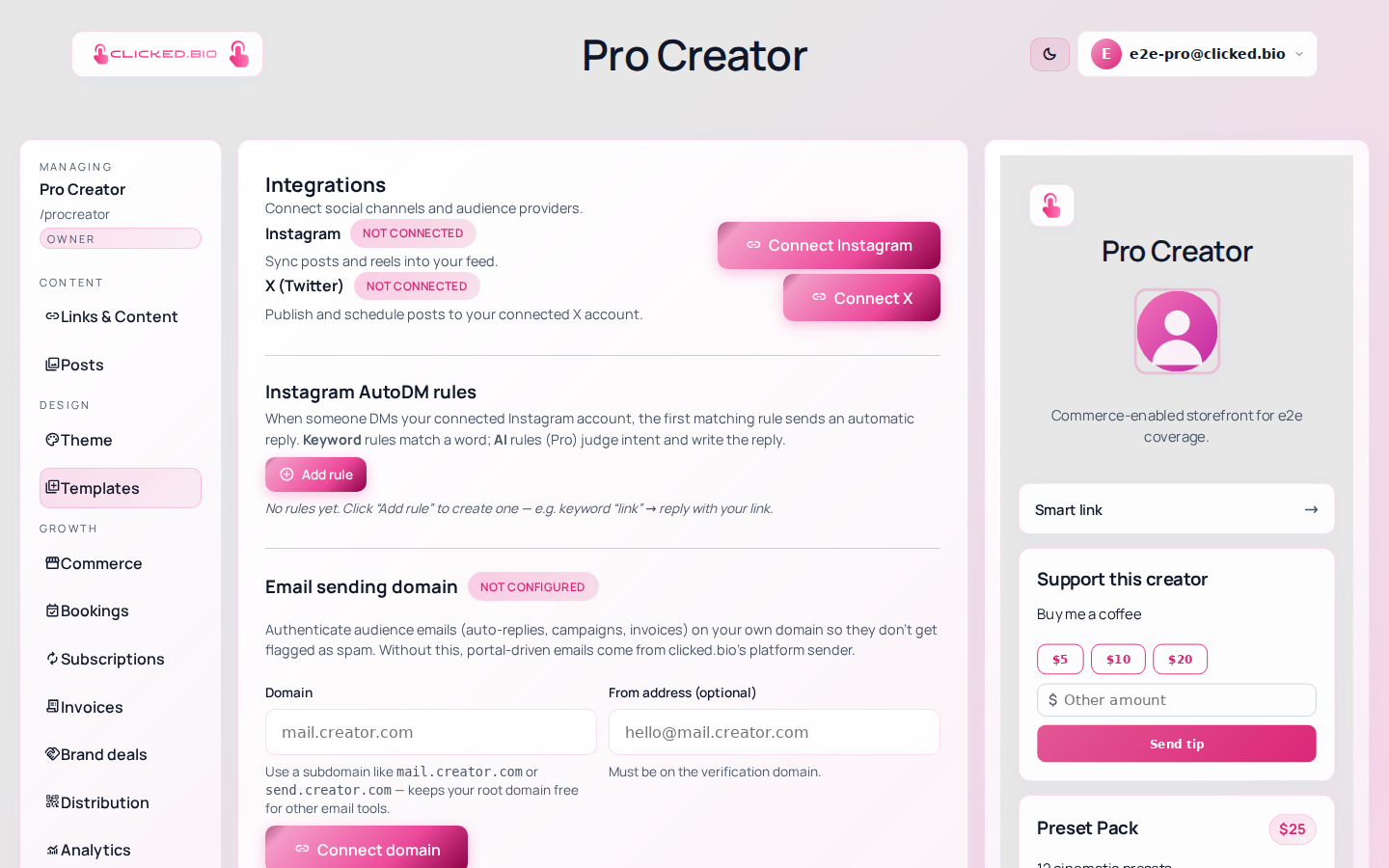
Instagram, X and the webhook connections live under Integrations. -
Click Connect Instagram
You go to Instagram to log in. Log in as the account you want connected, not a personal one you happen to be signed into in that browser.
-
Approve the permissions
Instagram lists what clicked.bio is asking for and you approve or cancel. See below for what each one is used for.
-
Check the status
You come back to the editor and the pill next to Instagram should read Connected, with your handle underneath it. If it does not, the pill says what went wrong.
What we ask for, and why#
Instagram grants permissions once, when you connect, and not per request afterwards. So the list you approve is the full list.
- Basic access — reads your profile and your posts so we can import them into your page. This is the one that makes the feed work.
- Messages — lets clicked.bio read DMs sent to you and send replies, which is what the keyword auto-reply rules under Integrations run on. Nothing is sent unless you have written a rule.
- Content publishing — lets you publish a post to Instagram from clicked.bio.
We cannot post, message or change anything on your account beyond what you set up in the editor.
Import your posts#
Connecting does not pull anything across on its own. Go to Posts, open the Instagram dropdown, and choose Import latest. Import more goes further back through your feed.
Imported posts start as drafts, so nothing appears publicly until you say so. That is deliberate: you get to pick which posts belong on the page.
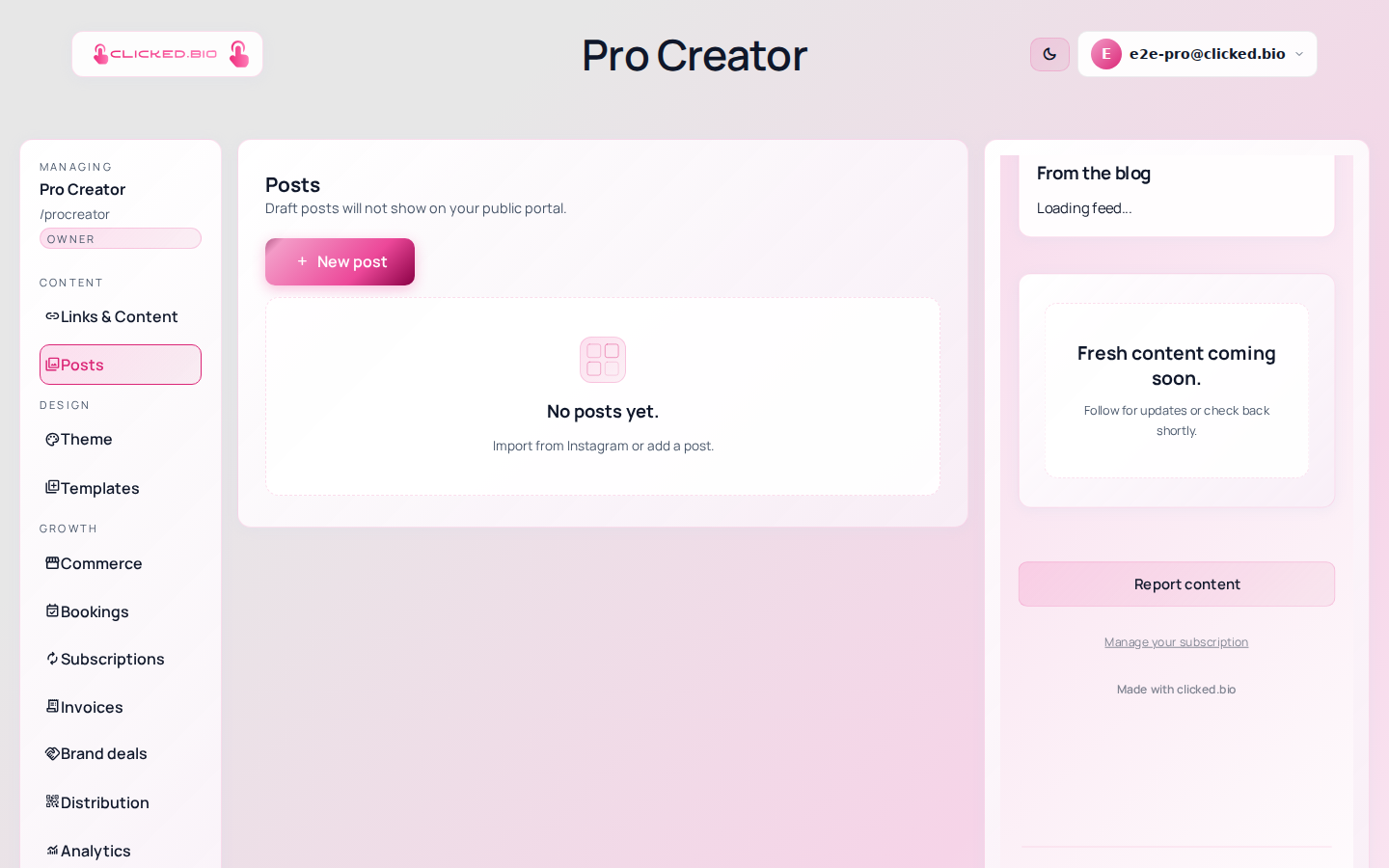
The point of importing is giving each post its own link, so a follower who saw a specific post can find the specific thing it was about.
Disconnecting#
The same button becomes Disconnect Instagram once you are connected. Disconnecting stops future imports and stops auto-replies. Posts you already imported stay on your page, because they are your content now.
You can also revoke access from Instagram's side, under Settings → Website permissions. If you do that, the status here changes to Revoked — reconnect required the next time we check.
If something is not working#
- Instagram rejects the login, or sends you back with an error Almost always the account type. Personal accounts cannot connect. Switch to Professional in the Instagram app and try again.
- The pill says "Token expired" Instagram access expires if the connection goes unused for about two months. Click Reconnect Instagram. Nothing is lost.
- The pill says "Revoked — reconnect required" Access was removed from Instagram's side, either by you or by someone else with access to the account. Reconnecting fixes it.
- You connected the wrong account Disconnect, then log out of Instagram in your browser before reconnecting. Otherwise Instagram silently reuses the session you already had.
- Connected, but no posts appear Connecting and importing are separate steps. See your Instagram posts aren't showing up.